Haul-out, sale or off-site load?
- Sale: you buy the farmer’s grain and pay them. See Spot sales and Forward contracts.
- Off-site load: your own grain goes to another elevator and stays yours. See Off-site storage.
- Customer haul-out: the farmer’s grain leaves for them, to a buyer they sold to, or home to their own bins or feedlot. It comes off their storage and no money changes hands for the grain.
Turn it on
- Open Site Config. Under Site Features, turn on Customer haul-outs.
- Click Save Configuration. A Weigh Out button appears next to New Delivery on the Scale page.
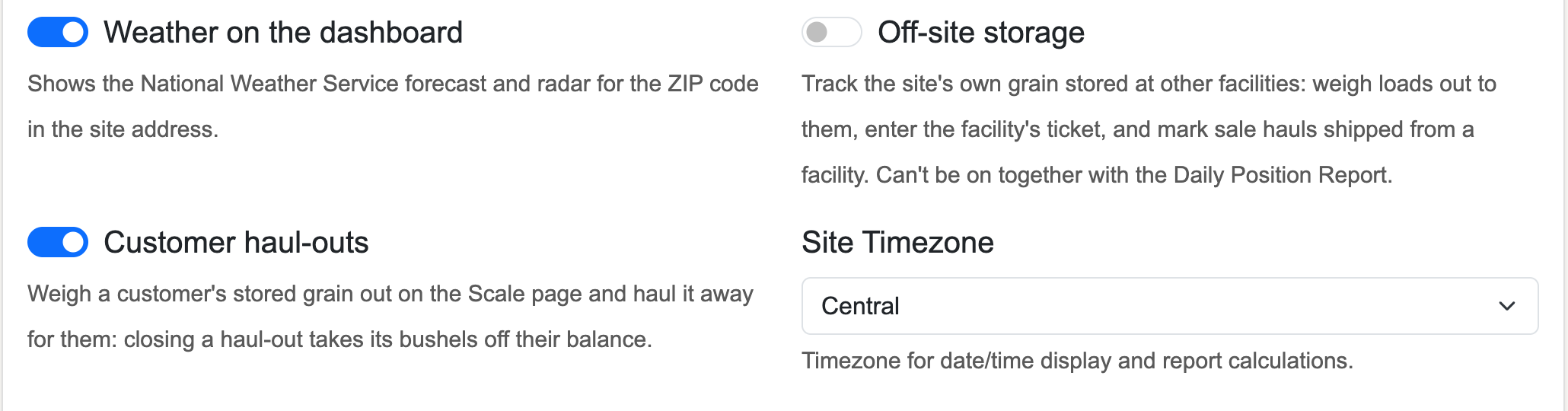
It can’t be turned off while a haul-out is still open on the Scale page. Closed haul-outs stay on the books when it’s off.
Weigh a haul-out
- On the Scale page, click Weigh Out, then Customer haul-out. The Weigh Out: Customer haul-out form opens in a pop-up window.
- Pick the Customer and Grain. Both start on Choose…. Enter a Load # if you number them, and the Destination if you know it. Leave Date blank for today.
- Enter or Capture the weight on the scale now: Empty weight (lbs) or Loaded weight (lbs). Either can come first. A red * marks what you need before you can close it.
- Enter Moisture, Test weight and FM/Dmg, or click Capture to read the grain tester. They’re recorded only: no shrink or discounts.
- Fill in Weighed by, Truck ID, Driver and Notes as you like. Set the Trucker now or later (see Trucking below).
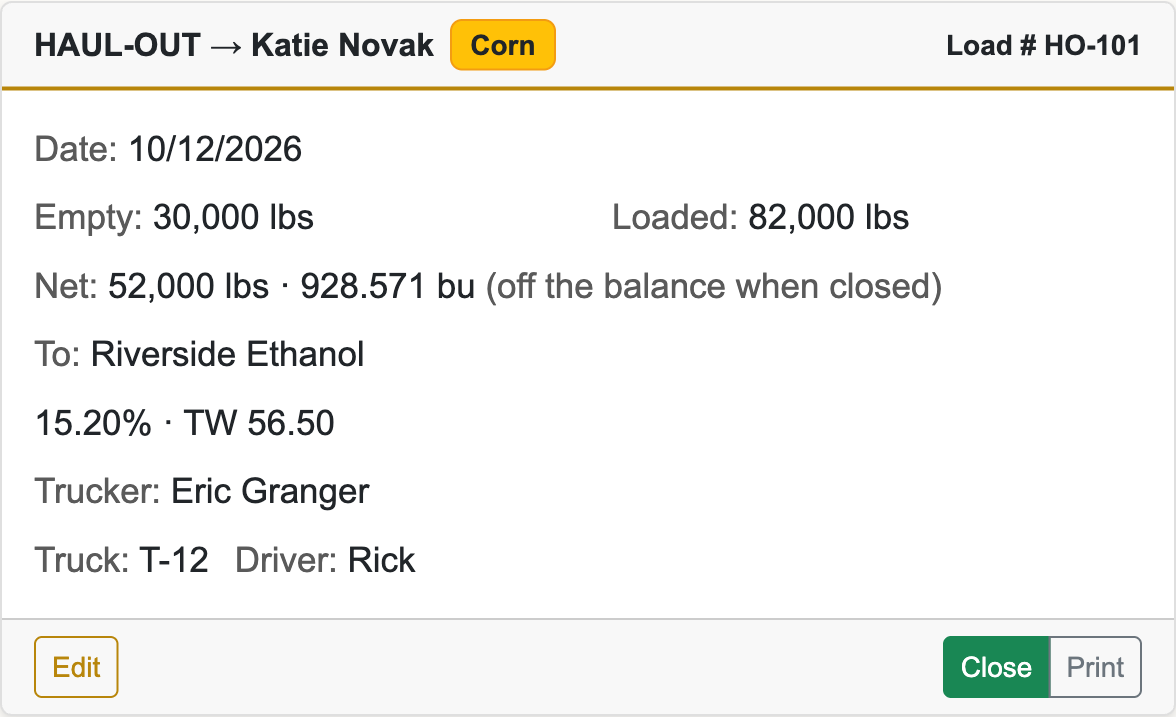
- Click Save. The haul-out shows as a HAUL-OUT → card under Open Transactions.
- When the truck is back on the scale, click Edit on the card. The form opens in the pop-up again. Enter the other weight and Save.

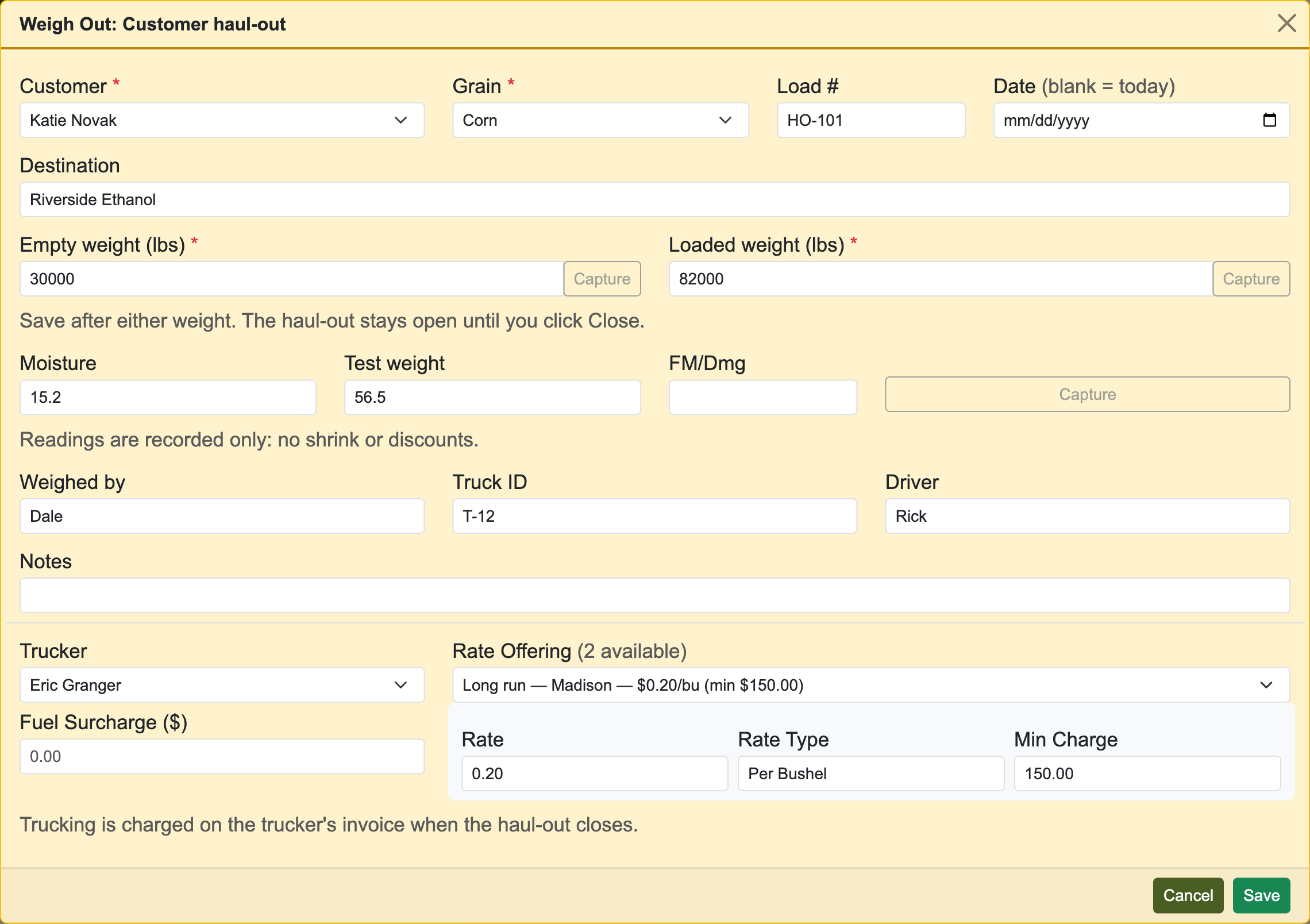
Clicking outside the pop-up doesn’t close it. Use the X, Cancel or Esc. This is true of every pop-up window in the app.
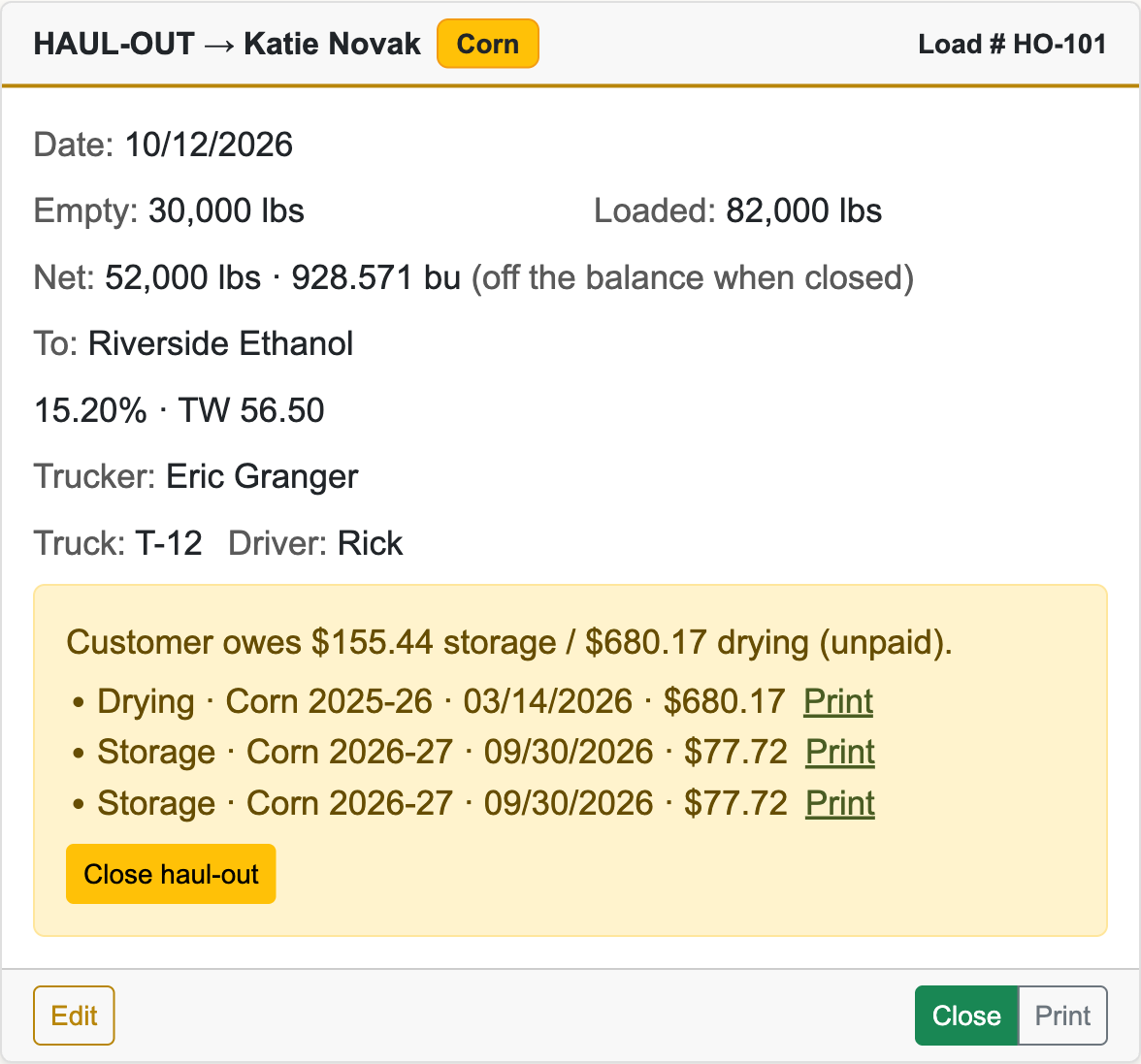
With both weights in, the card shows the net and the bushels: net pounds divided by the grain’s standard bushel weight. For corn, 78,960 lb loaded less 29,680 lb empty is 49,280 lb, or 880 bu at 56 lb/bu. The card also shows the date, the destination after To:, the readings and the trucker. An open haul-out takes nothing off anyone’s balance yet: (off the balance when closed).
Print the slip
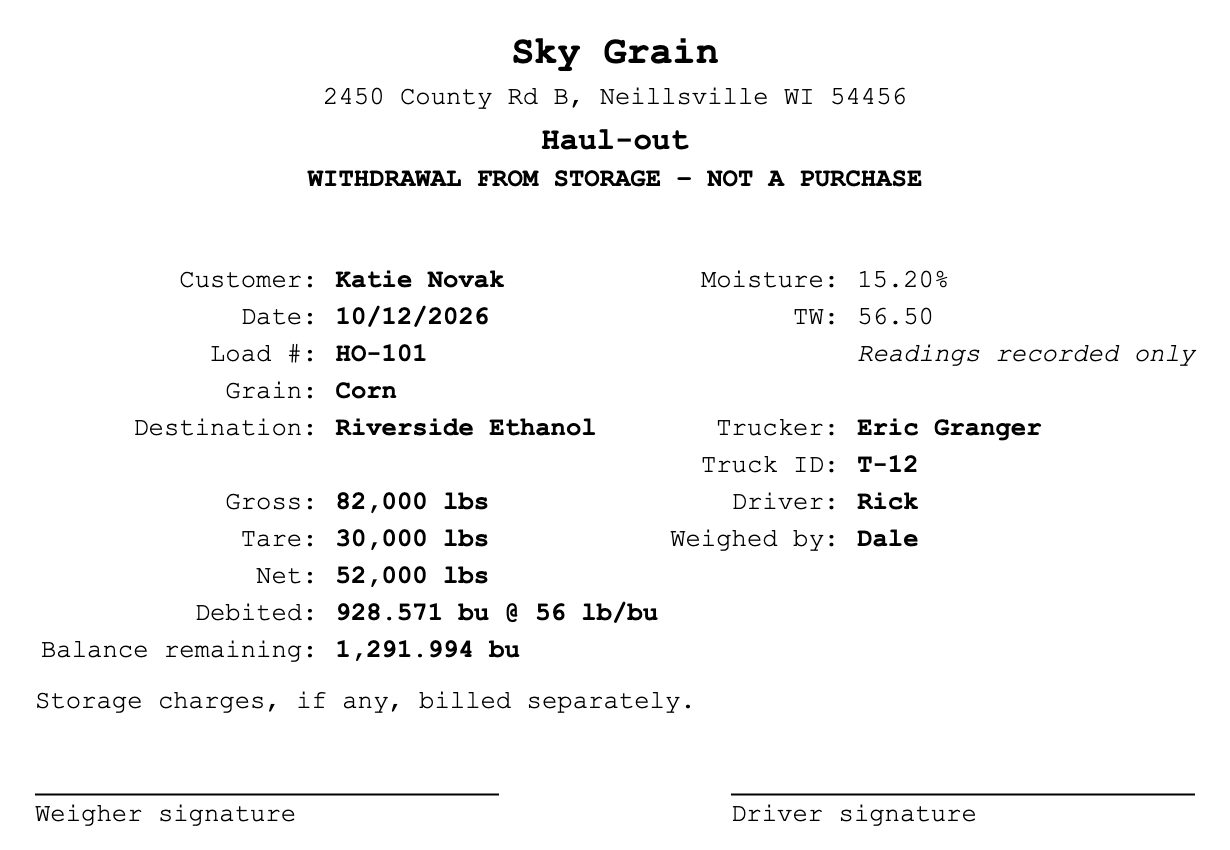
Once both weights are in, Print appears on the card. The slip opens in a new tab with the print dialog. It’s headed WITHDRAWAL FROM STORAGE – NOT A PURCHASE and shows the customer, date, load number, grain, destination and weights. Debited gives the bushels and the lb/bu used. Balance remaining is what the customer holds of that grain after this load. Readings are marked Readings recorded only.
Printed before Close, the slip says Storage charges, if any, billed separately. Printed after Close, it shows the Minimum storage charge if there was one. Each sheet has two copies on a cut line. Print grain slips twice under Site Features prints two full sheets.
Close the haul-out
- When the truck is loaded and weighed, click Close on its card.
- Check the bushels, grain, customer and date in the confirm box, for example “Close haul-out: 880 bu Corn off Johnson Farms’s balance, dated 10/12/2026?”, and click OK.
The card leaves the Scale page and the bushels come off the customer’s balance. Two charges are made:
- Minimum storage, the same as on a sale: one month at Minimum Storage Charge on bushels that haven’t been through a month-end yet, never more than hauled. It’s its own storage invoice. See Storage charges.
- Trucking, if a trucker is set. See Trucking below.
What the Close warnings mean
If there’s something to check first, a yellow box opens on the card instead and nothing is closed yet.
- More than they hold. For example “This haul-out is 880 bu of corn, over the customer’s balance on its haul date, 10/12/2026: they held only 600 bu then. Their current balance is 600 bu. Their balance goes red.” The balance can go below zero. It shows in red on Customer Balances until you fix it. Usually a delivery isn’t closed yet or a starting balance is missing.
- An open warehouse receipt. “The customer holds 1 open warehouse receipt for 5,000 bu of corn. A receipt is normally surrendered before the grain is hauled out.” Cancel the receipt if it was surrendered. See Daily Position Report and warehouse receipts.
If either one is in the box, its button reads Close haul-out anyway. Click it if the grain really left.
- Unpaid charges. For example “Customer owes $200.00 storage / $45.10 drying (unpaid).” Each unpaid storage and drying invoice is listed with a Print link, so you can hand it to the driver or the farmer. If this load empties every grain they hold, it adds “with nothing left to deduct from once this grain leaves”: there’s no future sale to take it off. This one is information only. Its button reads Close haul-out.
Trucking
An outside trucker on a haul-out is paid through the same trucking invoice as your sale hauls. See Trucker settlement.
- On the haul-out’s form, pick the Trucker and check the Rate Offering, or pick — Custom override — and enter the rate yourself. Add a Fuel Surcharge ($) if there is one.
- Click Save.
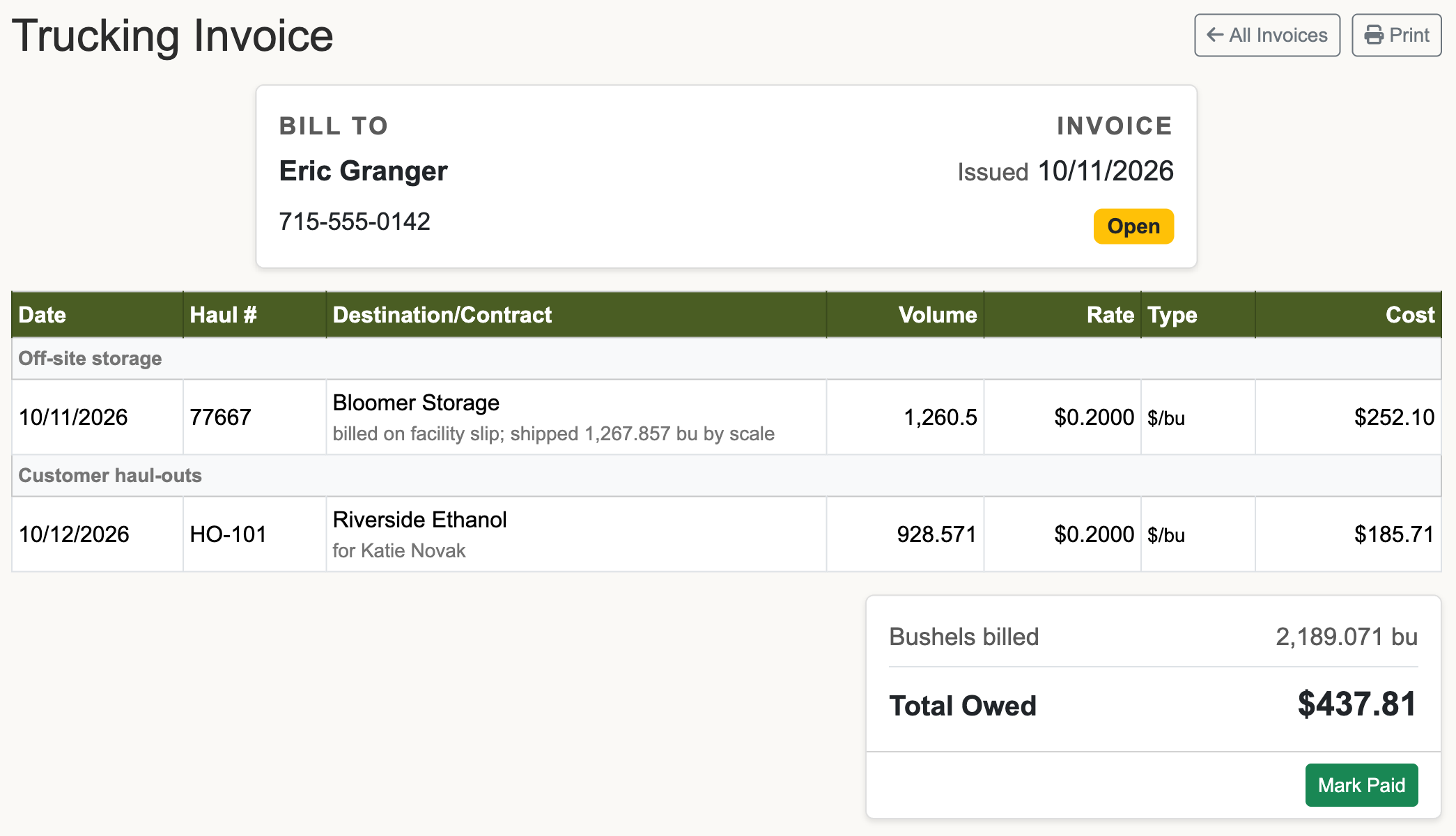
- The charge goes on at Close. It lands on that trucker’s open invoice under Customer haul-outs, with the destination and the customer’s name. Per-bushel rates bill on the haul-out’s bushels. Minimum charges and per-load rates work as on sale hauls.
- The customer isn’t billed. Horizon Grain records what you owe the trucker. If you pass trucking on to the farmer, bill them yourself.
- A paid invoice locks the haul-out. It can’t be reopened. Click Unmark Paid on the invoice first.
Where it shows up
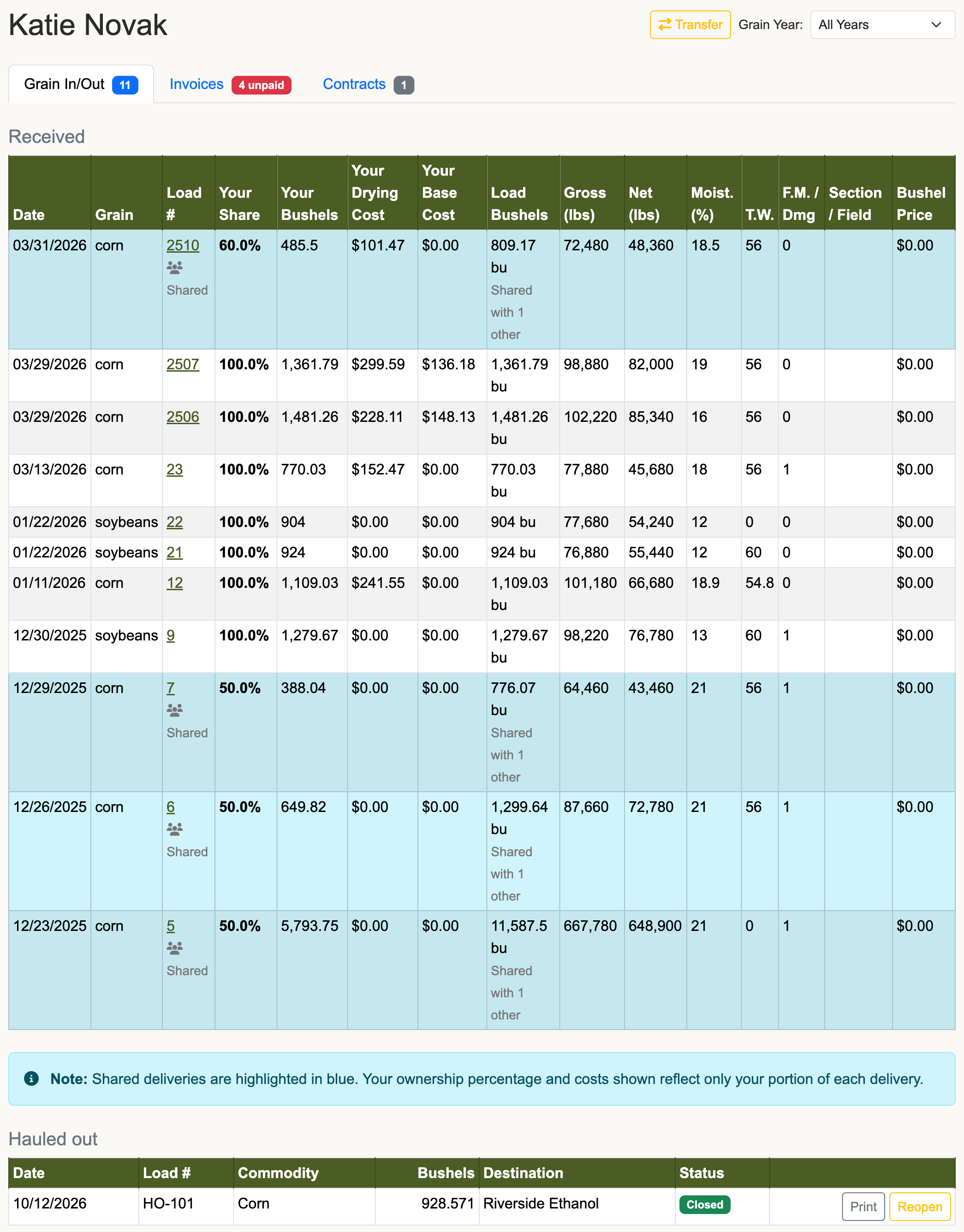
- Customer page. On Customer Balances, click View Details. The Grain In/Out tab lists deliveries under Received and haul-outs under Hauled out, open and closed, with Print and Reopen. Grain Year picks the season.
- Storage invoices. Monthly storage counts what’s left after the haul-out. The Storage Invoice Detail shows a - Hauled Out line. A minimum storage invoice names the haul-out it came from.
- Daily Position Report. A closed haul-out shows in Loaded Out on its date. It lowers Total Stock and Open Storage. Total Elevator Owned doesn’t change.
- Trucking invoice. Under Customer haul-outs, as above.
- Activity. Changes read like “Haul-out #2041 — Johnson Farms, corn”. Click one to open the customer’s page.
Reopen, fix or delete a haul-out
A closed haul-out can only be changed by reopening it:
- On the customer’s Grain In/Out tab, find it under Hauled out and click Reopen.
- Click OK at “Reopen this haul-out? Its bushels go back on the customer’s balance until it is closed again.” If Close charged minimum storage, it adds that the minimum-storage invoice is removed.
- It’s back on the Scale page as a card. Click Edit, fix it, Save, and Close it again.
Reopening also takes the trucking charge off the trucker’s invoice. Close puts both charges back. Archived haul-outs, from a season-end cleanup, have no Reopen.
Only open haul-outs can be deleted. Click Edit on the card, then Delete, and confirm. To delete a closed one, reopen it first.
Common problems
- “Close or delete the open haul-outs on the Scale page before turning customer haul-outs off.” Close or delete each HAUL-OUT → card, then save again.
- “Pick a customer” or “Pick a grain” Choose one from the list and save again.
- “Loaded weight must be greater than empty weight (loaded 29680 lbs, empty 78960 lbs)” The weights are in the wrong boxes. Swap them.
- “Enter both weights before closing.” Edit the card, add the missing weight, save, and close.
- No Print on the card. A weight is missing. Print shows once both are in.
- “This haul-out is closed. Reopen it to change its weights, grain, customer or date.” It was closed, maybe from another screen. Reopen it on the customer’s page.
- “Reopen this haul-out before deleting it.” It closed while the form was open. Reopen it first.
- “This haul-out’s trucking invoice is paid. Unmark it paid before changing its trucker or rate, or reopening it.” Open the invoice, click Unmark Paid, reopen, and mark it paid again once the haul-out is closed.
- “Its minimum-storage invoice can’t be removed: …” The minimum storage invoice is paid. Click Re-open on it on the Invoices tab, then reopen the haul-out. If it was paid as a deduction on a sale, take it off that sale first. See Storage charges.
- “This customer has an open haul-out on the Scale page. Close or delete it first.” You tried to delete a customer with an open haul-out. Close or delete it first.
- “Transfer failed: cannot transfer: customer has an open haul-out; close or delete it on the Scale page first” Loads can’t be transferred away from a customer with an open haul-out. Close or delete it first. Closed haul-outs also block a transfer until they’re archived at season end.
- A customer’s balance is red. A haul-out took out more than they had on the books. Look for an open delivery, a missing starting balance, or a haul-out on the wrong customer.