Turn it on and add facilities
- Open Site Config. Under Site Features, turn on Off-site storage and click Save Configuration. Off-site appears in the menu and a Facilities tab appears in Site Config.
- Click the Facilities tab, then Add Facility.
- Enter the Name. Contact, Phone, Address and Notes are optional. The address prints on the load slip. Use Notes for fees and storage terms.
- Click Save. Add one facility for each place you store grain.
Click Edit on a facility to change it. Two facilities can’t share a name (capitals and spaces don’t count as different). A facility that has never had a load or a sale shipped from it shows Delete on its edit form. Once used, it can’t be deleted, so past loads always keep it.
Weigh a load out
- On the Scale page, click Weigh Out, then Off-site load. The Weigh Out: Off-site load form opens in a pop-up window.
- Pick the Facility and Grain. Both start on Choose…. With New delivery starts on the last grain on, Grain starts on the last off-site load’s grain instead. Enter a Load # if you number them. Leave Date blank for today.
- Enter or Capture the weight on the scale now: Empty weight (lbs) or Loaded weight (lbs). Either can come first.
- Enter Moisture, Test weight and FM/Dmg. As on deliveries, separate several readings with commas and the app averages them, or click Capture to read the grain tester.
- Fill in Weighed by, Truck ID, Driver and Notes as you like. Set the Trucker now or later (see Trucking below).
- Click Save. The load shows as an OFF-SITE → card under Open Transactions.
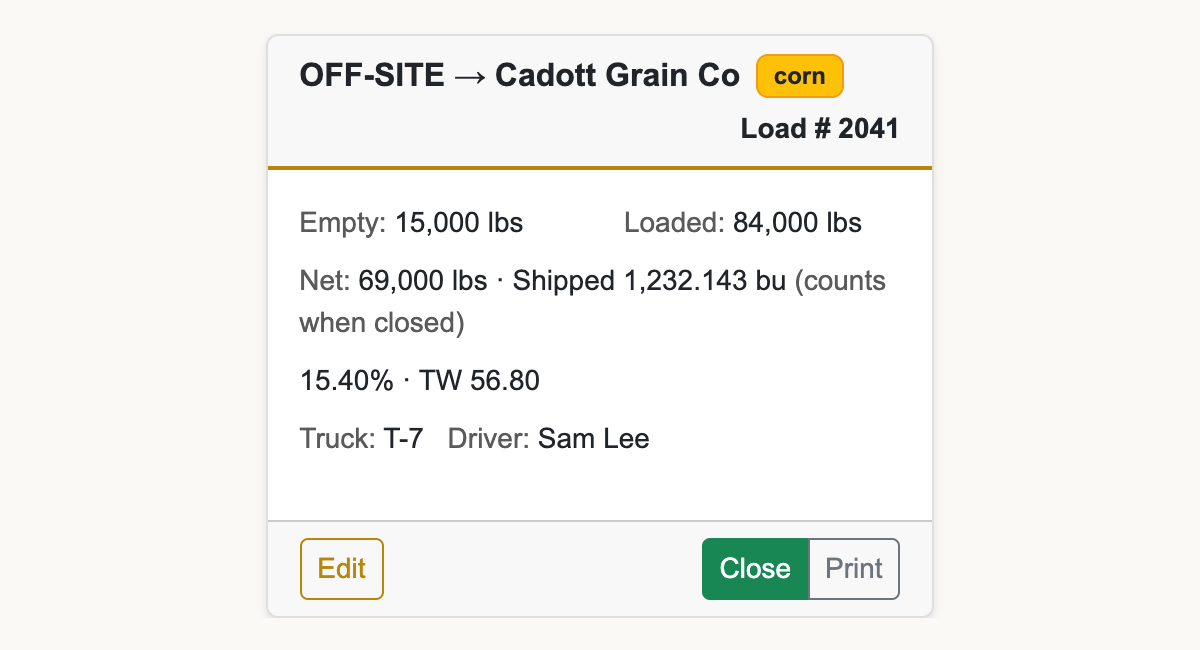
- When the truck is back on the scale, click Edit on the card. The form opens in the pop-up again. Enter the other weight and Save.
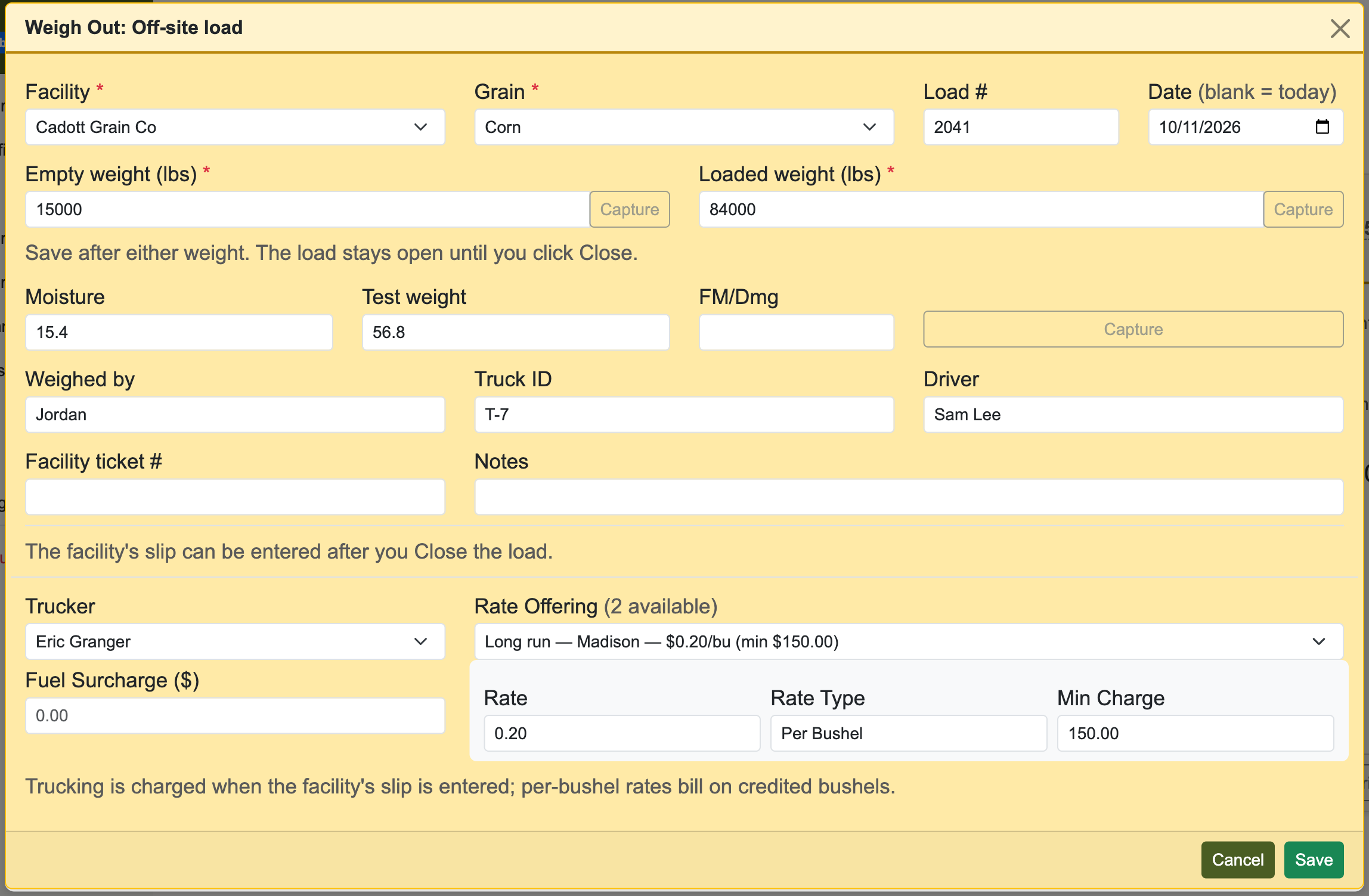
With both weights in, the card shows the net and the shipped bushels: net pounds divided by the grain’s bushel weight. For corn, 80,400 lb loaded less 30,400 lb empty is 50,000 lb, or 892.857 bu. No shrink is taken. The readings are kept for the record and don’t change the bushels.
An open load counts nowhere yet. The card says so: (counts when closed).
Print the slip
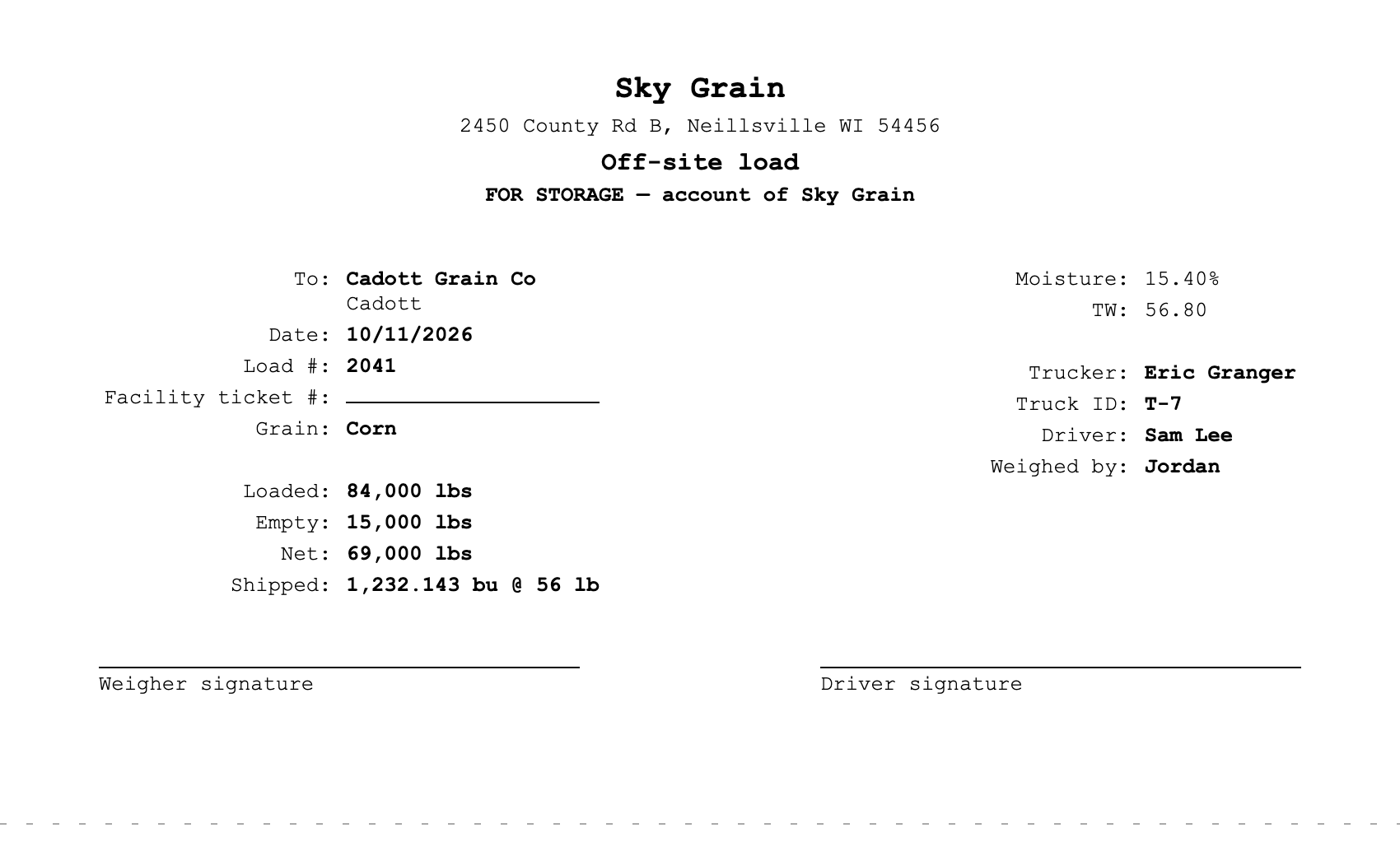
Once both weights are in, Print appears on the card. The slip opens in a new tab with the print dialog. It shows your site, the facility, the weights, shipped bushels, your readings, trucker, truck, driver and who weighed it, with signature lines for the weigher and driver. Each sheet has two copies on a cut line: one rides with the load, you keep the other. Print grain slips twice under Site Features prints two full sheets.
Close the load
- When the load is done at the scale, click Close on its card.
- Click OK at “Close this off-site load? Its bushels leave the home bins.”
The card leaves the Scale page. The shipped bushels come off Total Bushels In Storage for that grain and go on the facility’s count. What the site owns and has available to sell doesn’t change: the grain is still yours.
If the load ships more than your bins hold, a yellow box appears on the card instead, for example “This load ships 892.857 bu of corn but only 600 bu are in the home bins. Close anyway?” Bin totals can run behind (loads not yet closed, starting balances not entered). If the grain really left, click Close anyway.
Enter the facility’s slip
When the other elevator’s slip comes back:
- Click Off-site in the menu. Find the load under Loads weighed out and click Edit. The form opens at the top of the page.
- Under Facility’s slip, enter Credited bushels. Enter 0 if they credited nothing; 0 counts as entered.
- Enter whatever else the slip shows: Net weight (lbs), Moisture, TW, FM, Damage, Splits and Grade. Put their ticket number in Facility ticket #, just above that section.
- Click Save.
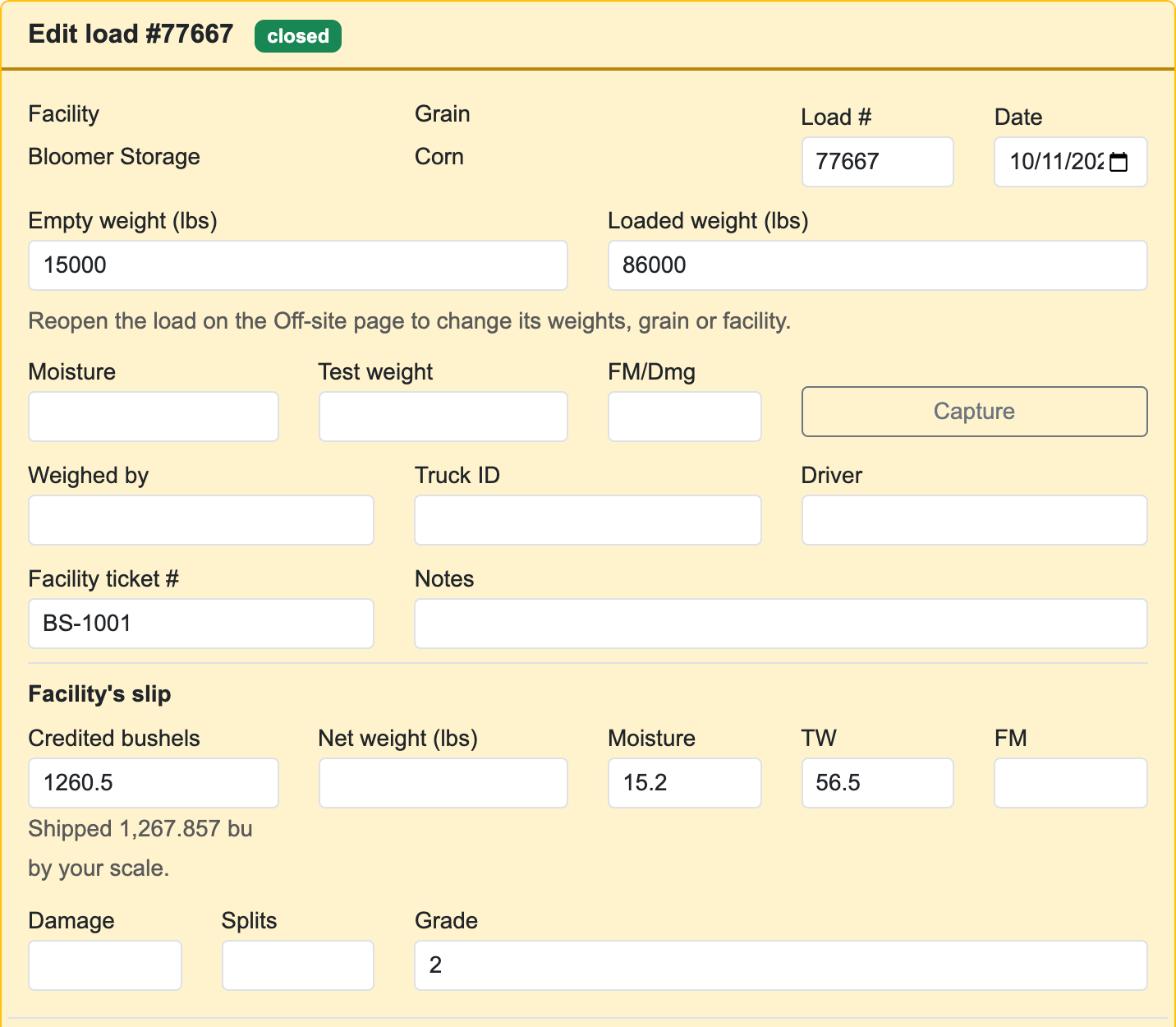
The row shows Credited bu and the Variance: shipped minus credited. If you entered their net weight, the pound difference shows under it. Their readings show under yours in Quality. Until the slip is in, the row says awaiting ticket and the facility counts the load at your shipped bushels.
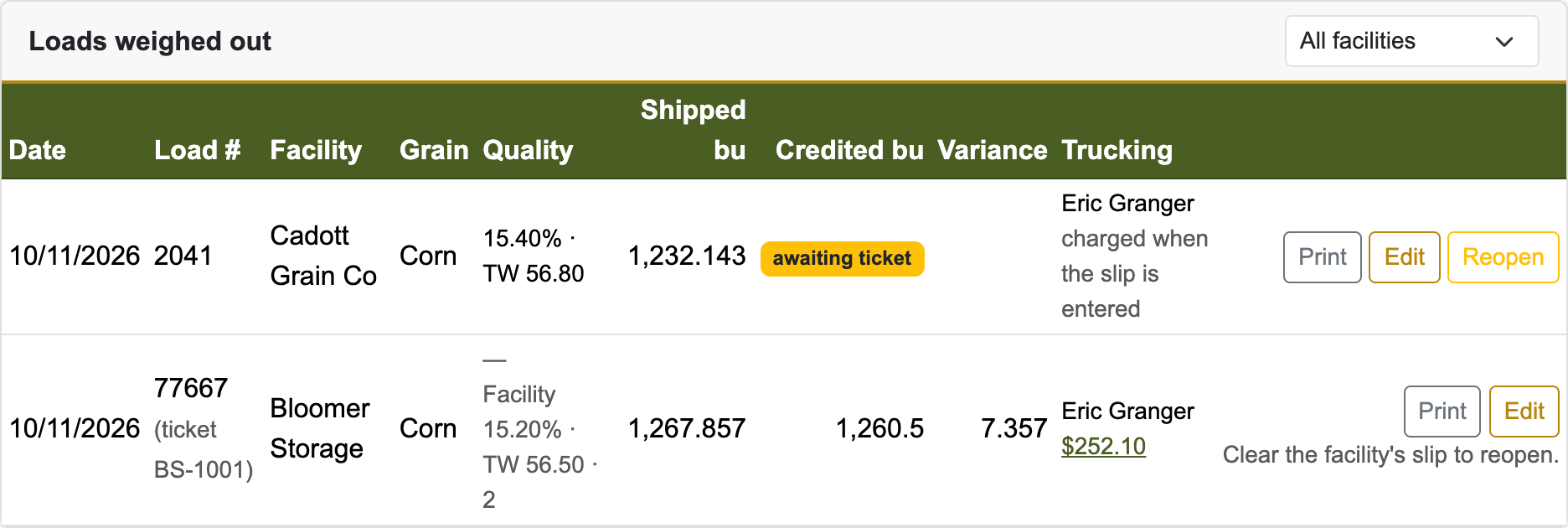
On a closed load the weights, grain and facility are locked. Everything else on the form can still be changed.
Read the Off-site page
- One line per grain at the top: bushels off-site at all facilities, bushels available to sell, and the variance. A positive variance means the facilities credited less than your scale shipped, so available may be overstated by that much. Nothing is written off; it’s there so you don’t sell grain you no longer have.
- A card per facility with On hand and Variance for each grain. Variance shows — until the first slip is in. The line under it shows bushels In and out, loads awaiting ticket, and sale(s) without out-ticket. A negative on-hand shows in red.
- estimate shows while any load is awaiting its ticket or any sale from the facility has no out-ticket. Enter those and it goes away.
- Loads weighed out lists closed loads, newest first. Pick a facility from the list in its header, or click a facility’s card, to see only its loads. Open loads aren’t listed; a link at the top says how many are on the Scale page.

Reopen or delete a load
To fix a closed load’s weights, grain or facility, reopen it:
- On the Off-site page, click Reopen on the load.
- Click OK at “Reopen this load? Its bushels go back into the home bins until it is closed again.”
- The load is back on the Scale page as a card. Click Edit, fix it, Save, and Close it again.
Reopen only shows on loads with nothing from the facility’s slip entered. Other rows say Clear the facility’s slip to reopen. To reopen one, click Edit, clear every box under Facility’s slip and Save. If its trucking invoice is paid, unmark it paid first.
If sales already shipped from that facility would leave it below zero, a yellow box asks first, for example “Sales already shipped from Valley Co-op would leave it at -292.857 bu of corn. Reopen anyway?” Click Reopen anyway if you’re fixing the load and will close it again.
Only open loads can be deleted. Click Edit on the card on the Scale page, then Delete, and confirm. To delete a closed load, reopen it first.
Trucking
An outside trucker on an off-site load is paid through the same trucking invoice as your sale hauls. See Trucker settlement.
- On the load’s form, pick the Trucker and check the Rate Offering, or pick — Custom override — and enter the rate yourself. Add a Fuel Surcharge ($) if there is one.
- Click Save. You can do this at the scale or later, on the Off-site page.
- The charge waits for the slip. A load goes on the trucker’s open invoice only once it’s closed, its slip is entered, and a trucker is set. Until then the row says charged when the slip is entered.
- Per-bushel rates bill on credited bushels, not your scale’s. 892.857 bu shipped, 890.5 credited, at $0.12/bu is $106.86. Minimum charges and per-load rates work as on sale hauls.
- On the invoice, off-site loads are listed under Off-site storage, with the facility as the destination.
- A paid invoice locks the load. Credited bushels, trucker, rate and surcharge can’t change, and it can’t be reopened. Click Unmark Paid on the invoice first.
Sell from a facility
Sell grain stored off-site like any other sale. When you log the haul, say where it left from:
- On Site Summary, click Add Haul on the sale (or on the Unapplied Hauls card).
- Enter Volume (bushels) from the buyer’s ticket, as always.
- In Shipped from, pick the facility instead of Home site.
- Enter Facility out-ticket bushels if the facility gives you an out ticket. It’s optional.
- Fill in the trucker as usual and click Add Haul.
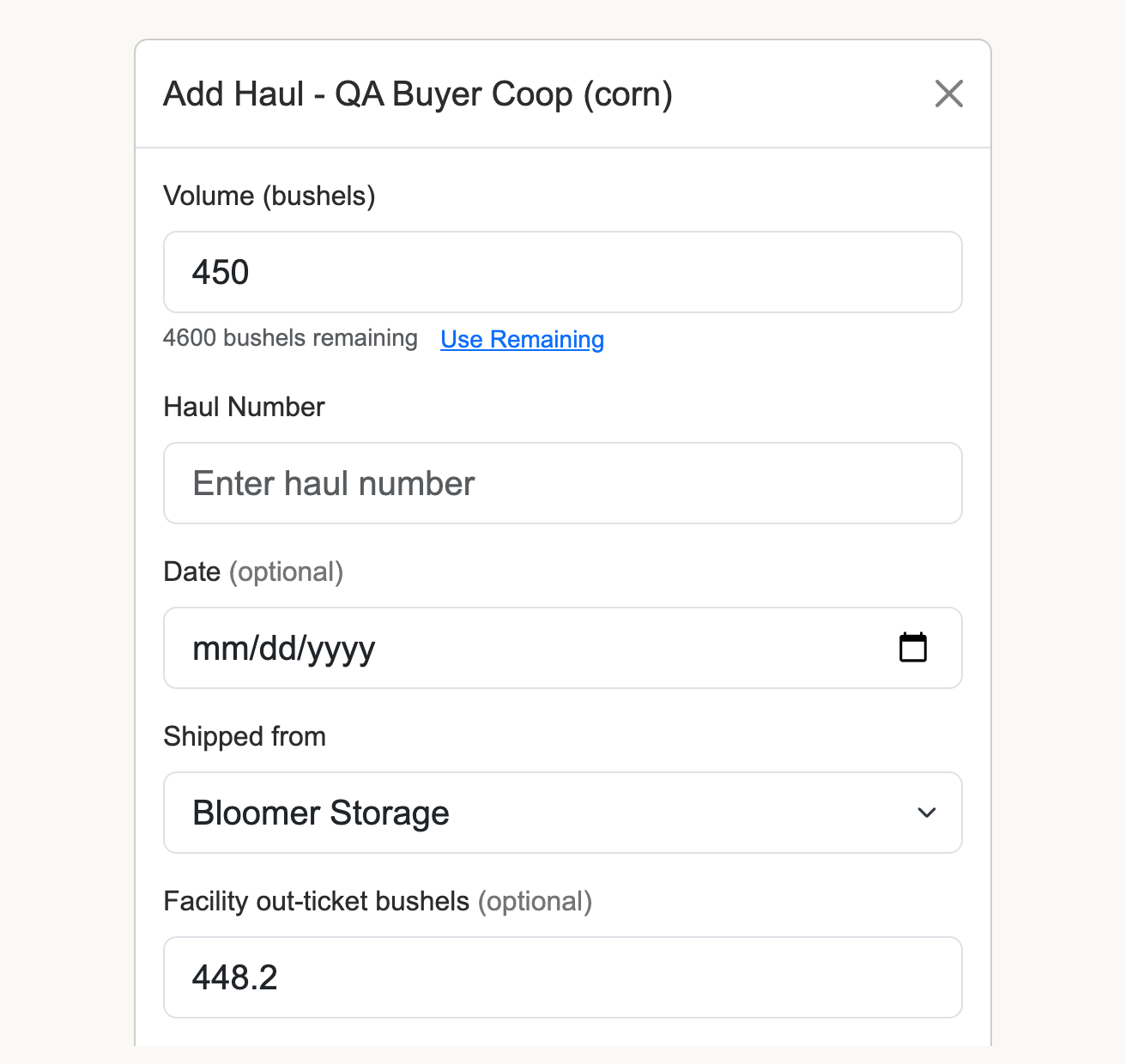
The sale gets credit for the buyer’s bushels as usual. Your home bins don’t change. The facility’s on-hand drops by the out-ticket bushels, or by the haul’s volume if you left that blank (and the facility shows estimate).
To change it later, click Edit on the haul and set Shipped from and Facility out-ticket bu. The haul list doesn’t show where a haul shipped from; open Edit to check.
Site Summary and Dashboard
With the setting on, each grain card on Site Summary shows Off-site Storage under Total Bushels In Storage, which is the home bins only. The Dashboard’s Inventory in Storage adds “off-site” and the bushels next to each grain that has any. Negative off-site bushels show in red on both pages and on the Off-site page. Both carry the estimate badge when it applies, and click through to the Off-site page.
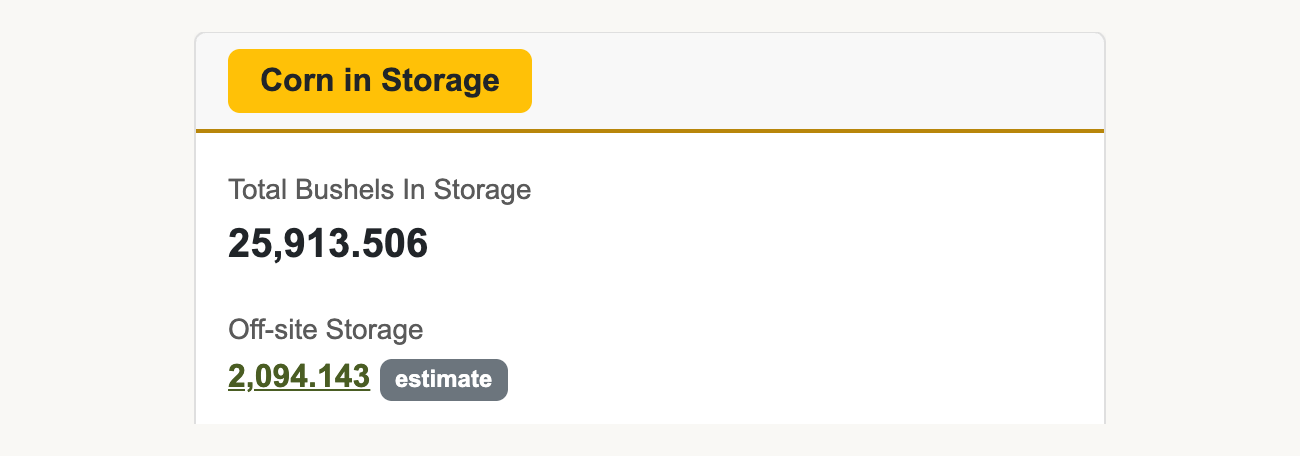
Turning the setting off hides the page, Off-site load under Weigh Out, and Shipped from. Closed loads still stay out of the home bins. It can’t be turned off while any off-site load is still open on the Scale page.
Common problems
- “Off-site storage and the Daily Position Report (DPR) can’t both be on: the DPR does not count grain stored at other facilities yet. Turn one of them off.” Pick one and save again.
- “The Daily Position Report (DPR) can’t be turned on for a site that stores grain at other facilities: it does not count that grain yet.” The DPR stays off while the site has any facility, even with off-site storage off. If no facility was ever used, delete them all on the Facilities tab (with off-site storage still on), then turn the DPR on. A site that has used a facility keeps the DPR off.
- “Close or delete the open off-site loads on the Scale page before turning off-site storage off.” Close each OFF-SITE → card on the Scale page, or delete it, then save again.
- “A facility named Valley Co-op already exists.” Another facility has that name. Use a different name, or edit the one you have.
- “This facility has loads or sales and can’t be deleted.” It has been used, even if those loads were deleted later. Keep it.
- Off-site load under Weigh Out says Add a facility first. Click it and add one on the Facilities tab.
- “Loaded weight must be greater than empty weight (loaded 30400 lbs, empty 80400 lbs)” The weights are in the wrong boxes. Swap them.
- “Enter both weights before closing.” Edit the card, add the missing weight, save, and close.
- No Print on the card. A weight is missing. Print shows once both are in.
- “This load is closed. Reopen it to change its weights, grain or facility.” The load was closed, maybe from another screen. Reopen it on the Off-site page.
- “Close the load before entering the facility’s slip.” Someone reopened it while you were editing. Refresh, close it on the Scale page, then enter the slip.
- Clear the facility’s slip to reopen. instead of Reopen, or “The facility’s slip is entered. Clear it before reopening.” Clear every box under Facility’s slip, save, then reopen.
- “Reopen this load before deleting it.” It closed while the form was open. Reopen it first.
- “This load’s trucking invoice is paid. Unmark it paid before changing credited bushels, the trucker, rate or facility.” Open the invoice, click Unmark Paid, make the change, and mark it paid again.
- A facility’s on-hand is red. Sales shipped from it add up to more than it was credited. Look for a haul with the wrong Shipped from, an out ticket entered too high, or a load still awaiting its slip.
- “This haul is marked reconciled. Unmark reconciled before changing where it shipped from.” Untick Reconciled (paid), save the change, then tick it again.
- “Facility out-ticket bushels must be greater than zero” Enter the bushels or leave the box blank.