Add a trucker
- Open Site Config from the menu and click the Truckers tab.
- Click Add Trucker.
- Enter the Name. Phone, Email, Address and Notes are optional. Contact details print on the invoice.
- Click Save.
Set the trucker's rates
A trucker can have one rate or several, for example a short haul to the local co-op and a long haul to a terminal.
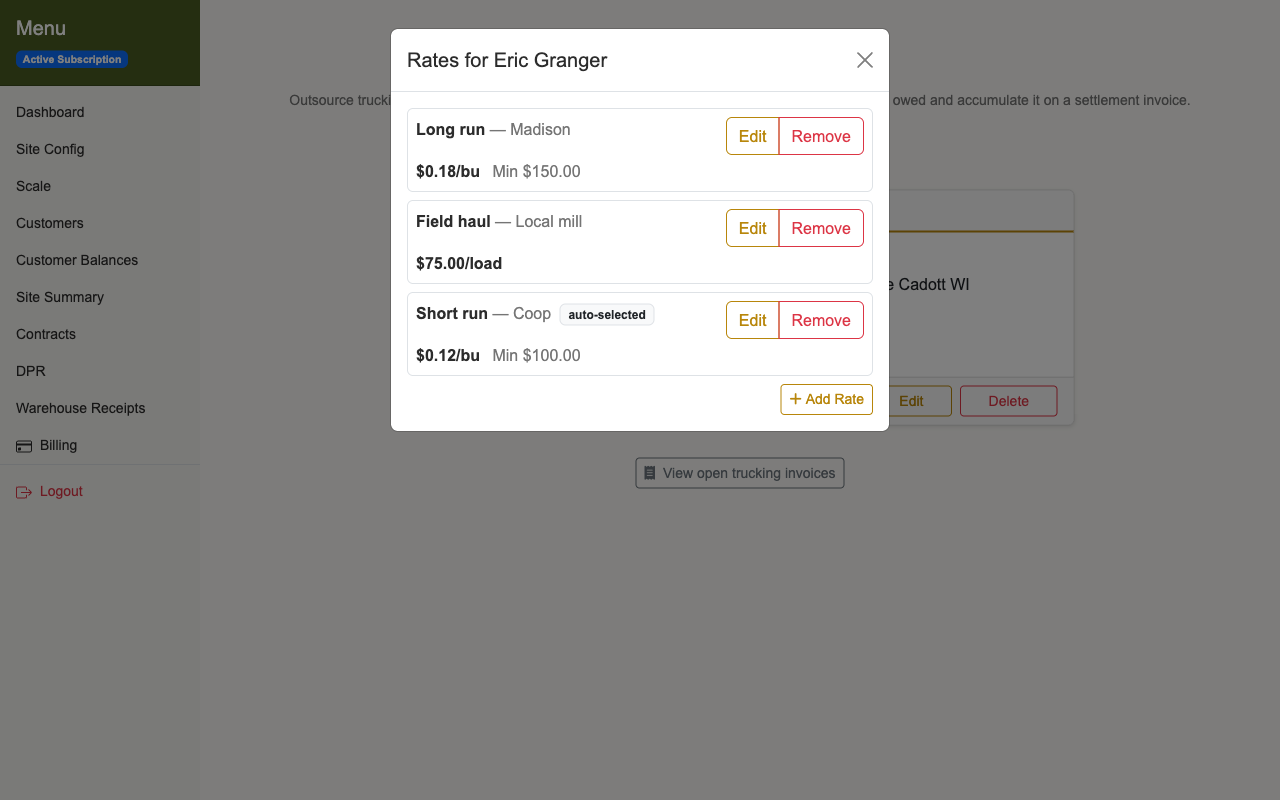
- On the trucker's card, click Rates.
- Click Add Rate.
- Enter a Label (such as "Short haul") and a Destination if the rate is for one place.
- Enter the Rate and pick a Rate Type: Per Bushel ($/bu) or Per Load (flat $).
- Enter a Min Charge if the trucker has one. Leave it blank if not.
- Click Save. Repeat for each rate.
The newest rate is marked auto-selected. It is picked for you when you log a new haul with this trucker.
Log a haul with a trucker
- Open Site Summary from the menu. In Sold Bushels, find the sale and click Add Haul.
- Enter Volume (bushels) and Haul Number. Date is optional.
- Pick the Trucker. The destination and rate fields appear.
- Check the Destination. It fills in with the sale's buyer. Start typing to choose from destinations you've used before.
- Check the Rate Offering. To use a one-time rate, pick — Custom override — and enter the Rate, Rate Type and Min Charge yourself. If you leave the rate and min charge blank, you're asked to confirm before the haul saves with a $0.00 trucking charge.
- Enter a Fuel Surcharge ($) if there is one.
- Click Add Haul.
The haul's cost is added to that trucker's open invoice. If the trucker has no open invoice, a new one starts. If you leave Trucker on — No trucker (own truck) —, no trucking cost is recorded.
Settle with the trucker
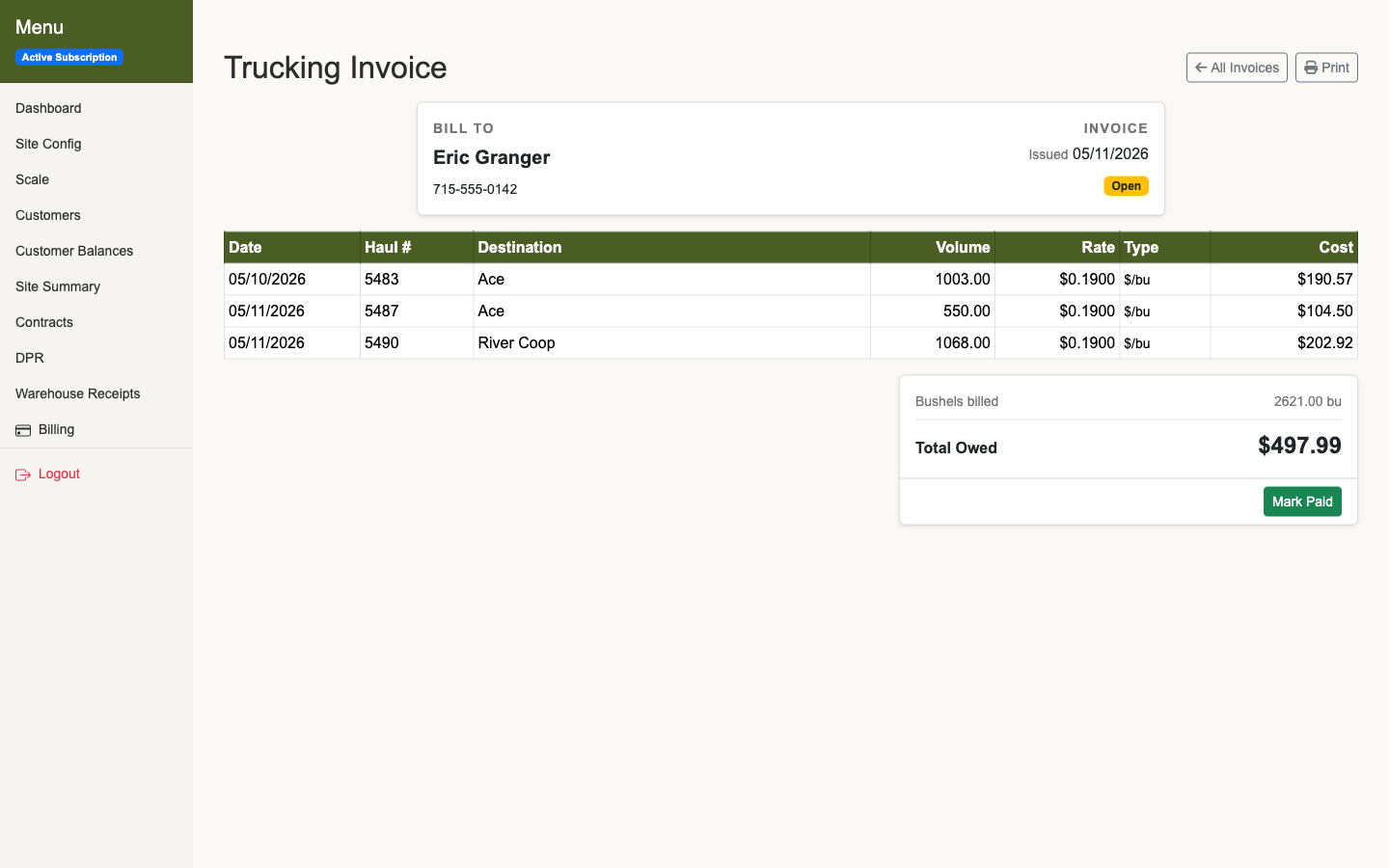
- Open the invoice. On Site Summary, scroll to Trucking Invoices and click View Invoice on the trucker's card. You can also click the trucker's name or the haul number in any haul list.
- Check the lines: each haul's date, haul number, destination, volume, rate and cost, with the Total Owed at the bottom.
- Click Print. A printable copy opens in a new tab and the print dialog comes up. It has signature lines for the trucker and your site.
- When you pay, click Mark Paid. You can record the trucker's Invoice #, the Payment date, Check #, Method and Notes. All are optional.
- Click Mark Paid in the window to finish.
Loads to off-site storage
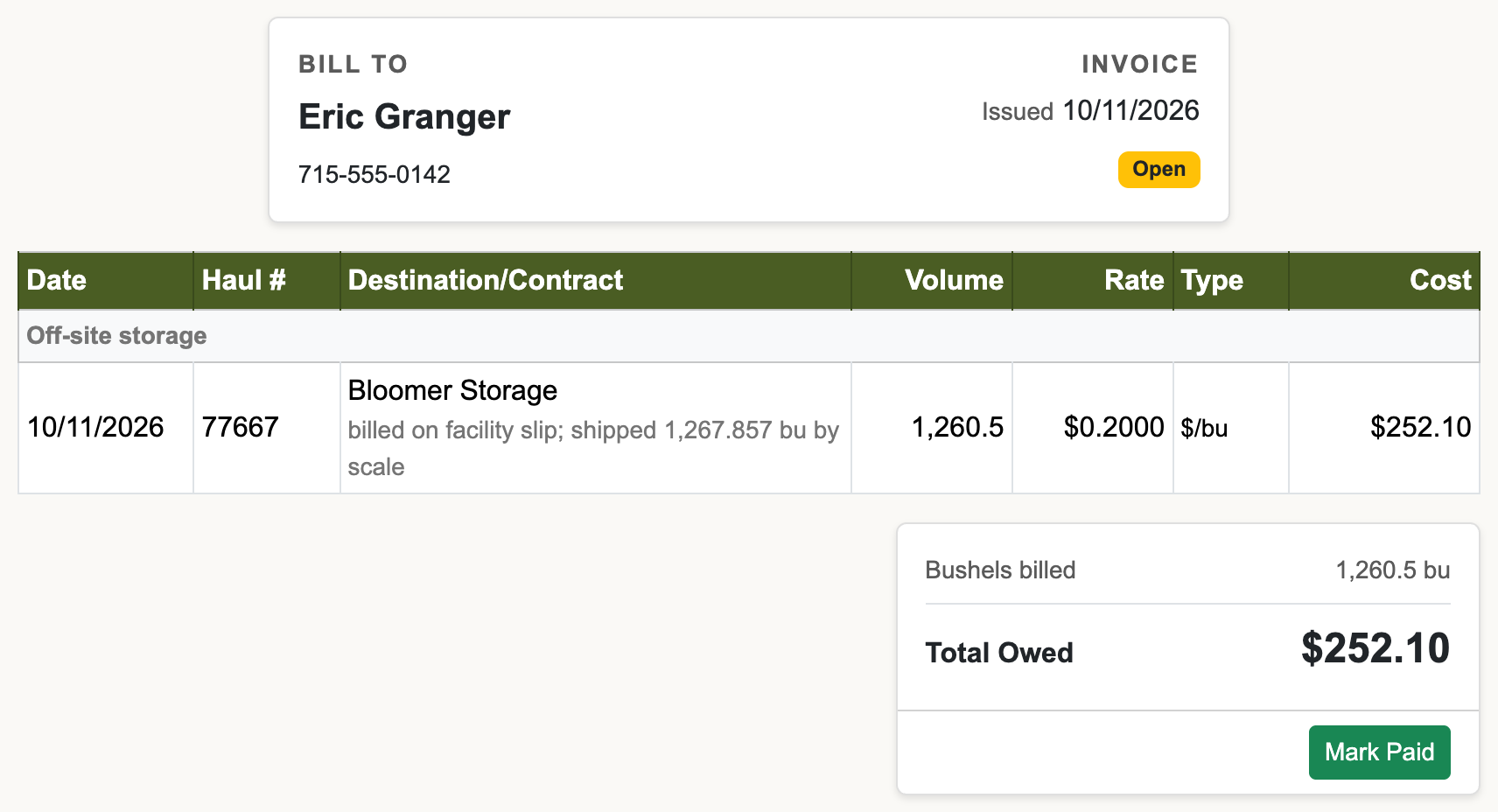
A trucker on a load weighed out to another elevator goes on the same open invoice. It’s charged only once the load is closed and the facility’s slip is entered, and a per-bushel rate bills on the bushels the facility credited. These loads are listed under Off-site storage on the invoice. See Off-site storage.
Customer haul-outs
A trucker on a customer’s grain hauled out for them goes on the same open invoice when the haul-out is closed. It’s listed under Customer haul-outs, with the destination and the customer’s name. Reopening the haul-out takes the charge off. The customer isn’t billed for it in the app. See Customer haul-outs.
What happens next
The invoice shows Paid and closes. The trucker's next haul starts a new open invoice. To see past invoices, set the status filter in Trucking Invoices to Paid or All Status.
Each haul keeps the rate it was logged with. Editing or removing a rate later doesn't change hauls you've already logged.
Common gotchas
- Paid invoices lock their hauls. You can't change the trucker, rate, destination or volume of a haul on a paid invoice, or delete it. Open the invoice and click Unmark Paid first. This clears the check number, date, method and notes, so enter them again when you mark it paid.
- Deleting a sale takes its hauls off the trucker's open invoice, so the total drops. If any haul on the sale is on a paid invoice, the delete is refused: A haul on this sale is on a paid trucking invoice. Unmark that invoice paid before deleting the sale. Click Unmark Paid on the invoice, delete the sale, then mark the invoice paid again.
- Adding a haul to a sale someone already deleted (for example, from another computer or an old browser tab) is refused: This sale was deleted or no longer exists. Refresh the page to see current sales.
- An edited rate becomes the default. Saving changes to a rate makes it the newest one, so it becomes auto-selected on new hauls.
- Minimum charges apply to per-bushel rates only. If bushels times the rate comes in under the minimum, the haul is charged the minimum and the invoice page shows "min applied". A per-load rate is always the flat amount.
- Deleting a trucker keeps their existing hauls and invoices (shown as "Name (inactive)"; the printed settlement shows just the name), but you can't pick them on new hauls. Saving an unrelated change to one of those hauls, such as the settlement number, keeps the trucker, rate and cost.
- On a phone, the trucker and rate fields don't show when you edit an existing haul. Use a tablet or computer to change them.