Weigh the truck in
- Click Scale in the menu, then New Delivery.
- In Customer, start typing the name and pick it from the list. You can leave it blank and fill it in later, but the load can’t be closed without one.
- Pick the Grain.
- Enter the Gross Weight, or click Capture next to it to read the scale.
- Enter Moisture, Test Wt and Damage. For several readings, separate them with commas (18.2,17.8) and the app averages them. See Moisture and shrink.
- Pick a Destination: Storage (the default), Spot to buy the grain today (enter the Price), or Contract (pick the contract from the list that appears; the price comes from the contract).
- Once a customer is picked, Farm Field appears. Choose the field the load came from, or click + Add field.
- Fill in Scale Operator and Notes if you like, then click Save Delivery.
The load appears as a card under Open Transactions with its load number, weights, readings and Dry Bushels.
Clicking outside the New Delivery window doesn’t close it. Use the X, Cancel or Esc. The same goes for every pop-up window in the app.
Weigh the truck out
- When the empty truck is back on the scale, click Edit on the load’s card.
- Enter the Tare Weight, or click Capture.
- Click Save. Net weight and dry bushels update.
If you already know both weights, enter them both in the New Delivery window. When the load is ready, close it.
Capture only reads the scale on the computer wired to it. In the web version the button is greyed out, so type the weight. See Scale terminal setup.
Split a load between customers
- In New Delivery, tick Split delivery between multiple customers. Two rows appear with the shares split evenly.
- Type each customer’s name, pick it from the list, and set their %. Click Add Customer for more. The total must come to 100%.
If the farm field you pick has a default split, the owners fill in for you. Each owner gets their share of the dry bushels and drying charge. A split load can’t go to a contract.
Ticket numbers
Each new load takes the next load number at your site. To change it on an open load, click the number on the card, type the new one and press Enter.
To number each customer’s loads separately, turn on Ticket numbers count per customer under Site Features in Site Config, then give the customer a Ticket Prefix on their customer form. Prefix 126 gives 12601, 12602, 12603. Customers without a prefix keep the site’s numbering.
Print the ticket
Click Print on the card, open or closed. The grain slip opens in a new tab and the print dialog comes up. For a closed load, click its load number on the customer’s Grain In/Out tab.
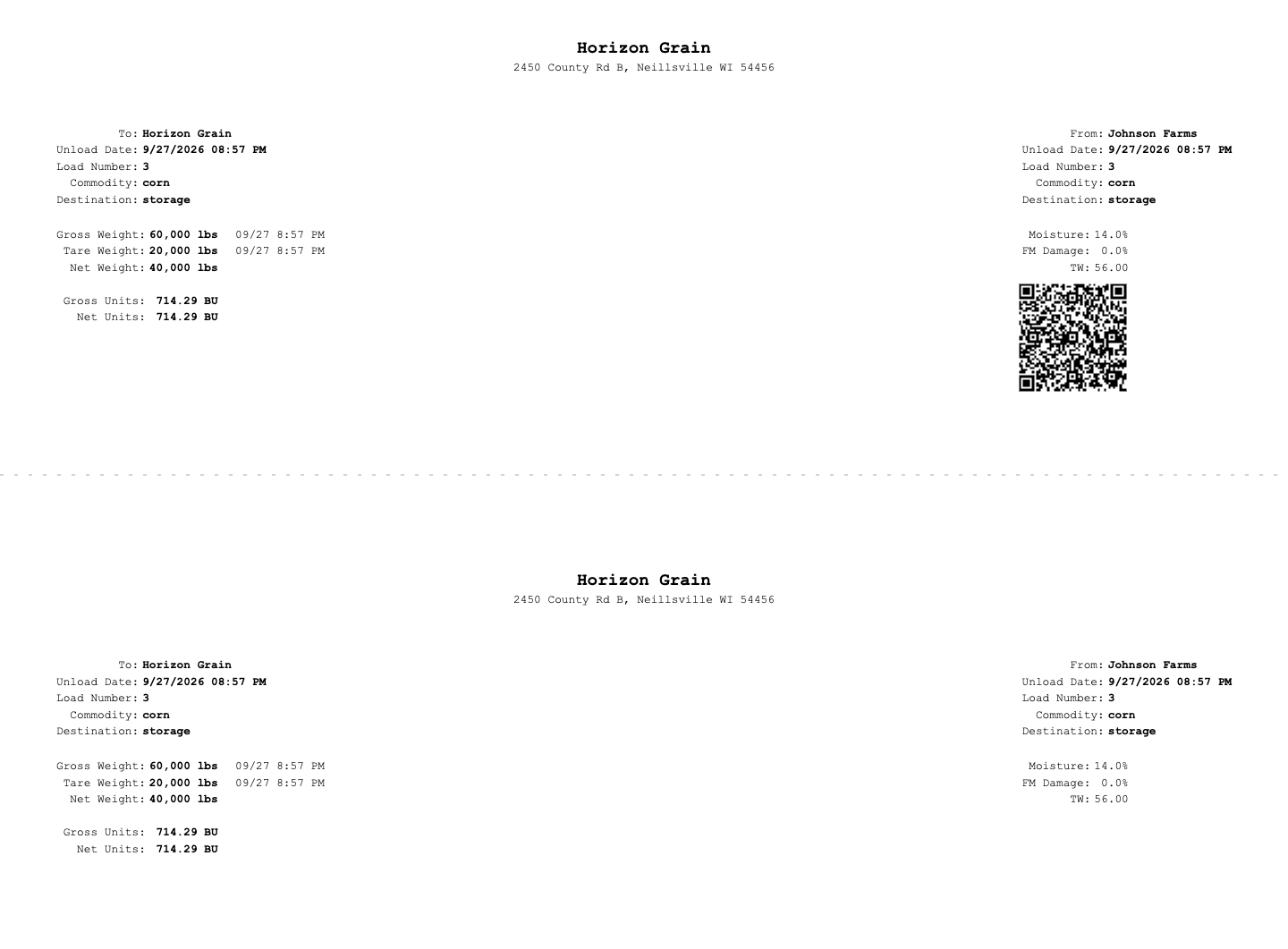
The slip carries a QR code the farmer can scan to see their loads (not on split loads). To print two full copies, one for the farmer and one for you, turn on Print grain slips twice under Site Features.
Trucks going out
With Off-site storage or Customer haul-outs on, a Weigh Out menu sits next to New Delivery:
- Off-site load weighs your own grain out to another facility. It shows as an OFF-SITE → card. See Off-site storage.
- Customer haul-out weighs a customer’s stored grain out for them. It shows as a HAUL-OUT → card. See Customer haul-outs.
These cards sit after the deliveries in Open Transactions.
Common problems
- “Please select a customer from the dropdown.” The name was typed but not picked from the list. Pick it, or add the customer under Customers first.
- Capture fills in nothing. The line under the box says why, for example “No weight from the scale. Press PRINT on the indicator, then capture again.” Some indicators only send a weight when you press PRINT. Press it and the box fills within a few seconds. If not, type the weight.
- Wrong customer or a duplicate ticket. While the load is open, click Edit to fix it, or Delete to remove it.