Supported scale indicators
- Rice Lake 720i, on its computer port or its printer cable
- Avery Weigh-Tronix (GSE) 465
- Cardinal (Detecto) 210
Have a different indicator? Email us the make and model. Horizon Grain only reads the weight. It never changes settings on the indicator, so sealed legal-for-trade settings stay as they are.
Connect it
- Plug in the terminal’s power, monitor and mouse. Horizon Grain opens on its own, already showing your site.
- Connect the scale indicator with the cable and USB adapter we shipped for it. Any USB port on the terminal works.
- Connect the grain tester the same way, with its own adapter. See Grain testers.
- Connect your printer. A network printer is preferred: plug it into your network (or join it to your Wi‑Fi) and email us its make and model. If the terminal is connected to the internet, a Horizon tech can add it to the terminal remotely. A USB printer also works. Plug it into any USB port on the terminal.
Keep each adapter with its own device. The terminal knows the scale and the tester by their adapters, so if you swap them, neither reading comes through.
Check the weight reading
The screen doesn’t show a live weight. To check the scale, capture a weight and compare it with the indicator.
- Go to Scale and click New Delivery.
- With weight on the deck and the indicator steady, click Capture next to Gross Weight.
- Cardinal 210, or a Rice Lake 720i on its computer port: the weight fills in.
- Avery 465, or a Rice Lake 720i on its printer cable: press PRINT on the indicator, before or after clicking Capture. Each press of PRINT fills in one weight, so one truck’s weight can’t land on the next load.
- Check that the number matches the indicator, then click Cancel if this was only a test.
Weights can only be captured on the terminal. In a web browser anywhere else, the Capture buttons are greyed out (“Scale capture is only available on the local client”) and you type weights in by hand. For the full weigh-in, see Weighing a load.
Print grain slips
- On the Scale page, click Print on the delivery’s card.
- The slip opens in a new tab and the print dialog comes up. Check your printer is selected and print.
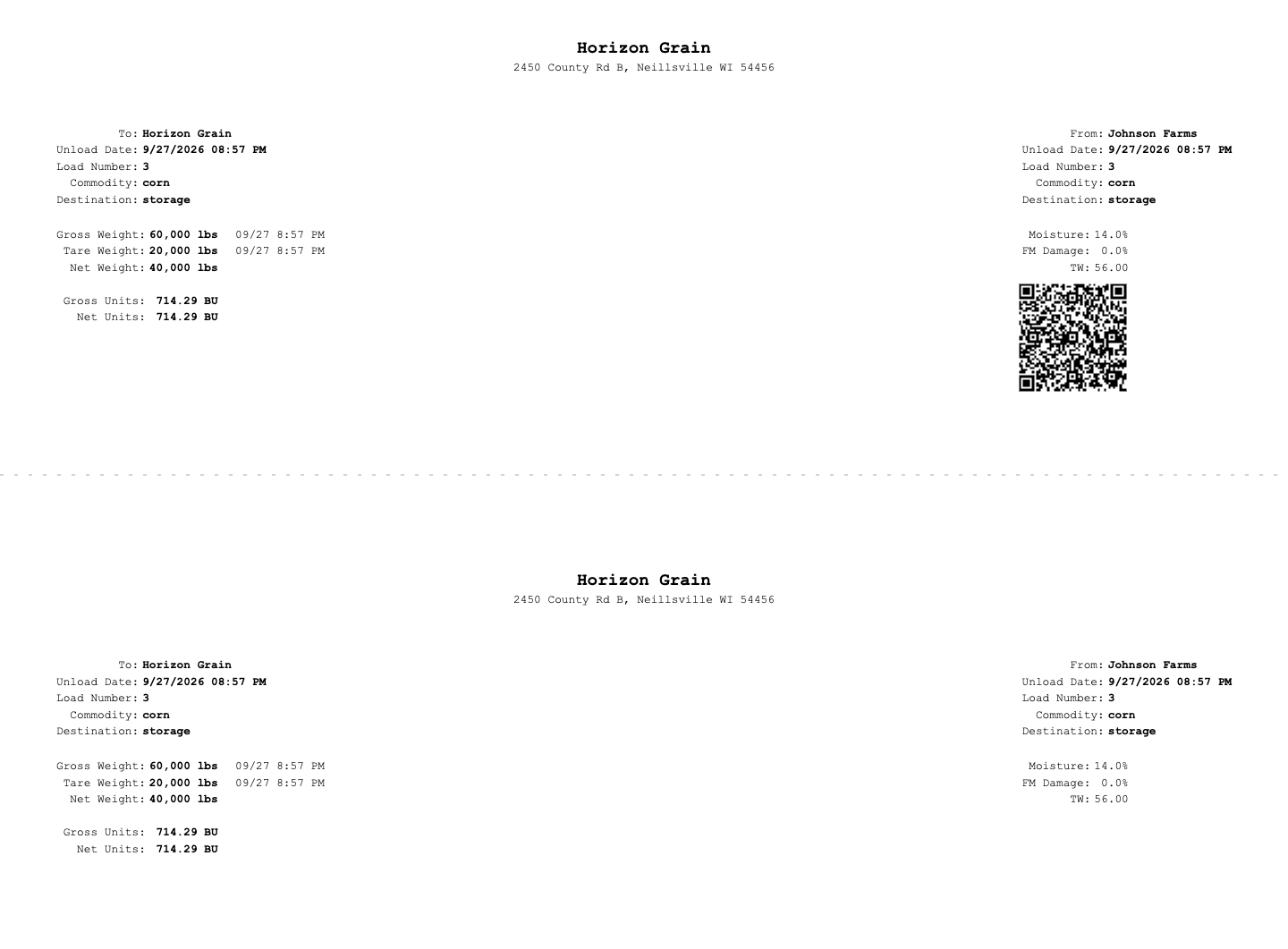
To give the farmer and the elevator a full sheet each, go to Site Config, turn on Print grain slips twice under Site Features, and click Save Configuration.
A printer isn’t included with the terminal. We recommend a network printer over USB. If you need a recommendation or want a network printer added, email us. If the terminal is connected to the internet, a Horizon tech can add it for you.
When the reading stops
- Capture doesn’t fill in a weight. Check the indicator is on and showing gross weight in lb. Clear any tare on the indicator. The line under the box says what’s wrong. If you press PRINT to send weights, press it again: the first press after the terminal restarts can be missed.
- A cable got bumped or unplugged. Plug it back in and wait about half a minute. The terminal reconnects on its own, without a restart.
- Still nothing. Turn the terminal off and back on. Horizon Grain opens again on its own. Meanwhile, read the weight off the indicator and type it into the box. Then email [email protected].
- The slip doesn’t print. Check the printer is on, has paper, and is the one picked in the print dialog. If it still won’t print, email us.
- The internet is down. The terminal keeps weighing, capturing and printing. Its loads show up in the office when the connection comes back. See Local and hosted.