Add a customer’s fields
- Go to Customers and click Fields on the customer’s card.
- Click Add Field.
- Enter the Field Name (required). Then fill in what you have: FSA Farm Number, Tract Number, Field Number, Tillable Acres, and County.
- Click Save Field. Repeat for each field.
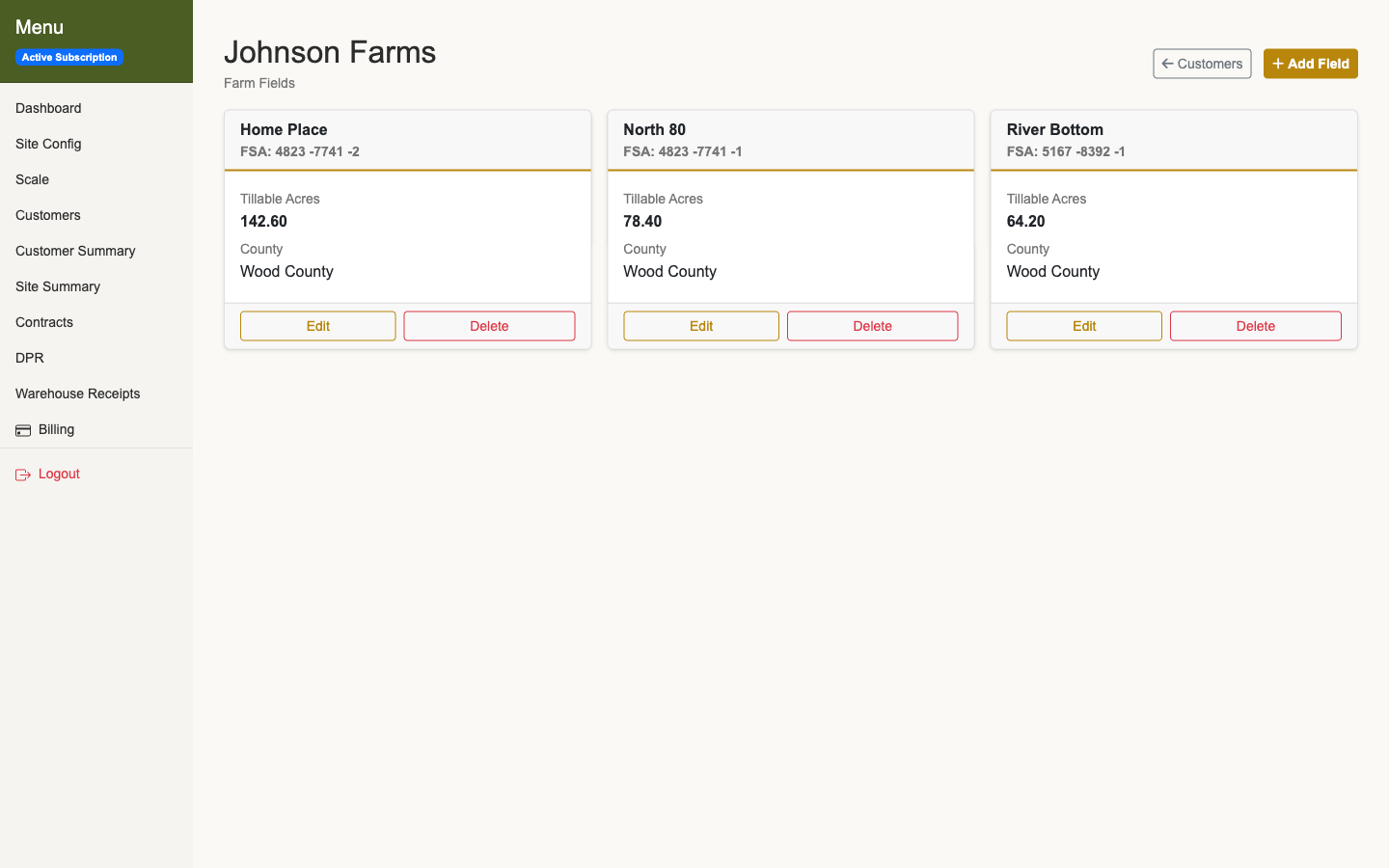
It’s easiest before harvest, when the farmer can read the numbers off his FSA paperwork. Fill in Tillable Acres if you want bushels per acre on the field report.
Pick the field on a delivery
- On the Scale page, click New Delivery.
- Choose the customer. The Farm Field list appears.
- Pick the field. Each one is listed by name with its FSA numbers, such as Home Place (FSA: 4823-7741-2).
- Finish the delivery and click Save Delivery.
If the farmer isn’t sure or the load is mixed, leave the field blank. While the load is still open you can set or change the field with Edit on the scale page.
Field not set up yet? Click + Add field under the Farm Field list, fill it in, and click Save Field without leaving the delivery.
What prints on the ticket
The printed delivery ticket shows Field: with the field name, FSA farm, tract, and field numbers, and county. The farmer can check it before he leaves the scale.
Start a field’s loads with a split
If a field’s grain is always shared, such as with a landlord, click Edit on the field’s card and fill in Delivery Split (optional). New deliveries from that field start with that split. Leave it blank for none.
Common problems
- No Farm Field list on the delivery. It appears after you choose a customer.
- The wrong customer’s fields on a split delivery. With Split delivery between multiple customers checked, the list shows the fields of the first customer under Customers & Ownership.
- Wrong field on a closed load. Closed loads can’t be edited. Reopen the delivery to fix it.
- Deleting a field. This can’t be undone. Loads that were on it show up on the field report as not on any field.